A QR code menu you print once
Your QR code points to your menu, not to a file. Change your menu as often as you like: the codes on the tables keep working and always show the latest version.
How it works
Every venue in MenuKlaar has its own link, like menuklaar.nl/m/your-venue. Your QR code holds that link. A guest scans the code with their phone's camera and sees your menu in the browser, no app needed.
Download the code as a PNG for screens and documents, or as an SVG for the print shop. Insights shows how often the code was scanned, apart from guests who came through a link. We count that without cookies.
Codes that keep working
A new price, a different dish, a new season: the link doesn't change, so the code doesn't either. You never print again because your menu changed.
Changing your link anyway, say because your venue gets a new name? Old links and printed QR codes then send guests to the new one by themselves. Even if you change your link again later.
A QR code in your style
On the Design page, under QR and print, you give the code your own look:
- Six patterns: squares, rounded, dots, diamonds, upright or flat lines.
- Corner frames and corner centres: square, rounded, round or leaf.
- Two colours: the corners in your brand colour, the pattern in your text colour.
- A label in a band or a box, above or below the code, or in a pill under it.
The label says “Scan for the menu” by default. Your own text and your logo in the middle of the code are part of Pro.
Pretty isn't enough: a QR code has to scan. MenuKlaar draws every code itself, with clear space around it and never in inverted colours, and shows for every choice whether it scans well. If your brand colour is too light, we make the code darker and tell you why.
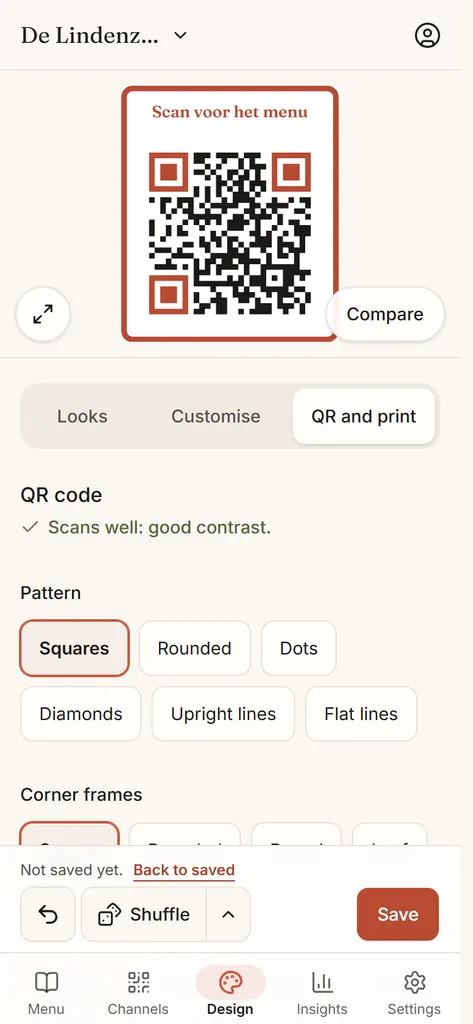
Table cards, tent cards and stickers
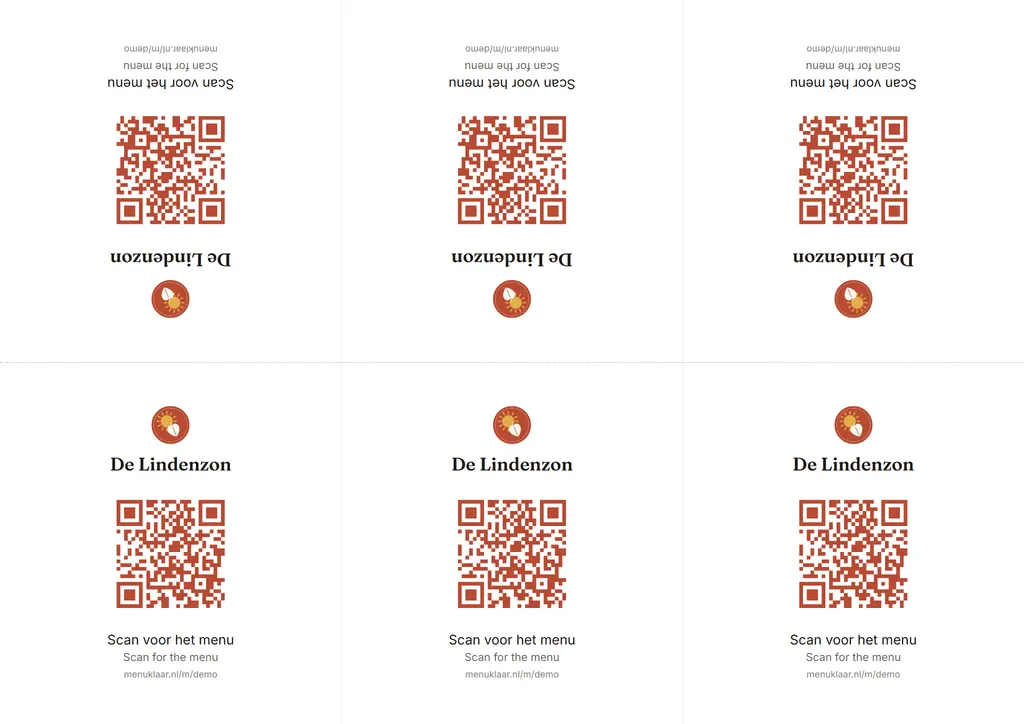
Your QR code comes ready to print as an A4 PDF, in four formats:
- Cards: 6 per A4 sheet, 105 by 99 mm. Cut them out and set them down.
- Tent: 3 per A4 sheet. Fold them in the middle and they stand up, with the code on both sides.
- A6: 4 per A4 sheet, with your logo, name and address.
- Stickers: 12 per A4 sheet, 70 by 70 mm, for the door or the window.
Every format is in every plan and follows your look: your font, your colours and your QR code's style.
Questions and answers
Do I need to print a new QR code when my menu changes?
No. The code holds the link to your menu, and that link stays the same. What you change in the editor, guests see on their next scan.
Can I put my logo in the QR code?
Yes, with Pro. Your logo sits on a white plate in the middle of the code: rounded, round or square. The code is made strong enough for that, and MenuKlaar shows whether it scans well.
Which file do I give the print shop?
The SVG. It stays sharp at any size, from a sticker to a poster. The PNG is handy for your screen, your website or a document.
What happens to my QR codes if I stop Pro?
Your first venue stays online on Free and its codes keep working. Download the code again and it has the standard label, without a logo. If you have more venues, their codes show that the menu is unavailable until you upgrade again.
Can I see how often the code is scanned?
Yes. Insights counts the scans per day, apart from visits through a link. Without cookies and without keeping any data about your guests.